Wednesday, April 16, 2008

Screen Shots

Sometimes it is useful to take screen shots of materials, images or information to use in your online course. Here are some tips for a simple way to make screenshots.
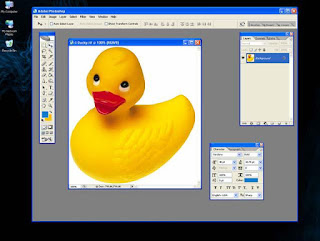
Tip #1: Ctrl + Print Screen will take a screen shot of your entire desktop and copy it to your clipboard. From there you can paste the image into any program including Microsoft Word. Example:
Tip #2: Alt + Print Screen will take a screen shot of the current window. Example:

Tip #3: Alt + Print Screen also works with snagging just dialogue boxes! Simply click on the dialogue box you want to snag and press Alt + Print Screen. Example:

Trick #1:
You can use the Alt + Print Screen option then paste the image into Word and crop the image down even further! Example:
Trick #2:
You can bring attention to certain elements of screen shots by using Word’s shape tools. Example:

Before

After

Friday, April 11, 2008

Hot Potatoes

I have been looking at learning objects that can be used for my faculty who are teaching 100% online classes. They wanted to have some self assessments to help the students review the material in a fun way that was low stress.
I also have been looking at freeware or shareware types of applications to get the faculty to try other methods of delivery outside of the PowerPoint and Blackboard environment that would be low risk for them as well. So my initial criterion was it had to be free and easy.
I did a search on Dogpile for “create quiz free” and got a bazillion hits. I did not realize all the various types of quiz makers were out there. So I had to go in and see what each quiz maker had to offer and then decided that I need to change the criteria of my search. The new criterion was that I had to be able to download the computer quiz maker application to my hard drive and be able to save files locally. The files needed to be able to insert into a Blackboard course or on a website and I had to be able to go in and edit the quizzes. Oh, and be free and easy.
With the new criteria I was able to weed out a good portion of the hits. Although I did find one websites called Proprofs.com that was noteworthy. It is an educationally driven site that you can create a quiz and post online and share the quiz with others. They have a varied collection of online quizzes that had been created and are free to use. So I bookmarked this site to pass on to faculty to use for their courses. So after much weeding I looked at Hot Potatoes.
I was able to download quickly the application and was impressed at the ease of the download and registration. I did not encounter any pop ups or advertising schemes. A simple interface with the 5 question styles display in the initial screen. All of the question types were easy to navigate and come up with a quiz in one sitting. I was able to make the following types of questions; multiple-choice, short-answer, jumbled-sentence, crossword, matching/ordering and gap-fill.
There are many options under the hood of this application, with the ability to customize the appearance with colors and font styles. There are shuffle options to rotate questions as they appear, timing options to set limits for each question. They also include the ability to have results emailed to a location if needed. My initial review is for self assessment so I did not test this function at depth but, will in the future.
I was impressed at the options I had to customize my quizzes with hyperlinks, images, audio and video clips within the quiz questions. Hot Potatoes also came with a tool called the Masher that compiles the various question types into a single file. This was a great feature to able to pull in the different formats into a continuous file. When I was done I was also impressed at the options I had for the output of the file. The options were: Web page (HTML), Zip, Scorm, Hardcopy and WecCT.
Because of the various universal formats for output I did not see any discernable differences in the output when I viewed the quiz in Internet Explorer or Firefox. The files are compact and loaded quickly when inserting in a Blackboard course and in viewing them as well.
Overall this is a great tool that fits all the needs for a beginning into assessment applications. The fact that is free and easy to use is deceiving because it is a very sophisticated application that rivals other applications where cost is involved. It definitely has a place in my personal toolbox.

Tuesday, April 8, 2008

Folksonomy?

What is a folksonomy?

Thomas Vander Wal, the information architect credited with coining the term "FOLKSONOMY".
Normal ordinary humans = folks
Scientific Classification = taxonomy
In other words, a folksonomy is a user generated taxonomy used to categorize and retrieve Web pages, photographs, Web links and other web content labels called tags.

Why do I care?
Folksonomies, or tagging, can help you locate information that has been selected by other humans who share the same interest or expertise. Search engines are not human (of course!) and there fore not very intuitive.

What are some folksonomic resources? (tools for tagging)
OCW Finder http://ocwfinder.com
OpenCourseWare sites provide free and open learning materials from university courses such as syllabi, lecture notes, demonstrations, video, exam questions, and other materials. The goal of the service is to provide users an extremely easy way to find OCW materials.
Send2Wiki http://send2wiki.com
Send2wiki is a service that helps users pull content from any web page directly into a wiki. The goal of the service is to make it extremely easy to build derivative works, especially of open educational resources (OER). The Send2wiki button can be embedded in webpages by site owners, or installed as a bookmarklet by users.
Make a Path http://makeapath.com
Make a Path is a site where learners and educators can sequence web pages, creating paths through web resources for others or for themselves.
Ozmozr http://ozmozr.com
Ozmozr is a tool that includes a number of services: an identity aggregation service, a web-based RSS aggregator, a sharing tool, and a group tool. Ozmozr allows learners to locate and easily share web-resources with their friends and colleagues.
Annorate http://annorate.com
Annorate is a combination annotation and rating service. The goal of the service is to make it extremely easy to add annotations and ratings to any webpage, particularly webpages with educational content.

Now you know. Time to get folksonomic!

Thursday, March 20, 2008

Time Saving Tips for Distance Educators

Sometimes it is easy top get overwhelmed with the amount of work that can take place when teaching online. "Scope creep" can happen in distance education just as it can in any project. What follows here are some basic tips to keep you organized (and sane) as you return from Spring Break.


  • Make your course easy to navigate. .
    --Label the buttons in the menu appropriately and delete ones that are not needed.
    --Organize your content in folders, modules, units, or whatever you would like to call them for each lesson or each week of the class.
    --Use a similar format from week to week or lesson to lesson so students will quickly learn what to expect.

  • To avoid specding time answering numerous e-maail, phone calls and discussion questions about course basics:
    --Provide a comprehensive syllabus that fully explains how the course works.
    --Develop an FAQ (frequently asked questions) document and post it in your course.

  • Schedule
    --Spell out your schedule will be for providing feedback and responding to questions.
    --Set aside a specific time each day that you will devote to the class.
    --Effectively manage your e-mail to reduce the amount of time you spend sorting, searching, and responding.
    --Develop a FAQ for e-mail, too. Copy and paste them into e-mail replies to students.

  • Discussion
    --Encourage them to post their questions in the discussion boards where other students can read & answer.
    --Assigning one or two students to facilitate the discussion each week.

Interesting Tips from the web

"Make use of free electronic greeting cards to help with student rapport, and let the students know you are there!" http://uhvonline.blogspot.com/2006/11/11-time-saving-tips-for-teaching.html

http://connect.educause.edu/Library/EDUCAUSE+Quarterly/ReducingtheOnlineInstruct/39983


"One way I learned to save time both for me and for students was by setting up a “What’s New” section at the beginning of the online course. In the past, I added content to whatever section seemed appropriate. Students either complained about not finding the new material or they simply did not respond adequately to the new assignments or lecture notes. Indicating what has been added at the beginning of the site makes it much easier for students to focus on the new material, and it also provides me with a quick reminder at the start of class about what needs to be covered in the discussion."


"14. Use reusable learning objects and free on-line resources developed by other faculty and made available for widespread use. See a list of such resources at http://www.itcnetwork.org/resources.htm#Learning%20Object%20Repositories"
http://www.ptc.edu/beck/Time_saving_tips.htm


Find more great tips at:


Planning and Organizing for Distance Education
Heidi Ashbaugh, Instructional Design Specialist, Lifelong Learning, TWU
OES07_Ashbaugh_Planning.pdf


Some materials adapted from
Time Saving Tips for Distance Learning Instructors


http://www.wpi.edu/Academics/ATC/Collaboratory/Tips/ADLN/timesaving.html

Tuesday, March 11, 2008

3rd Annual eLearning Lecture - April 4th

Please join the Office of Lifelong Learning for the 3rd Annual eLearning Lecture on Friday, April 4th at 10 a.m. Our lecturer will be Dr. José Bowen, Dean of the Meadows School of the Arts and Professor of Music at Southern Methodist University.

For more information and to register, please visit the eLearning Lecture website. The registration deadline is Monday, March 31 so register soon!

Wednesday, March 5, 2008

My video clip wont play!

Video Convertor Program

All videos that we use today come from widely different sources and have varying formats that may or may not play on our computers. To help ease the pain of trying to download different players to accommodate the formats, one thought is to change the format of the video.
There are many video convertor programs available to edit and/or convert video formats. Most are under $5o and have a free trial version to download. I have tested several and my picks are Prism ($59) and Xilisoft ($35).
They are both easy to use and quick on the conversion process. I would ultimately go with the Xilisoft program as it has the capacity to convert most all of the formats we come across on a daily basis. It can convert AVI, MPEG, MP4, WMV, FLV, SWF and many more. It also can convert audio files as well.
Prism can be found at www.nch.com.au and xilisoft is at www.xilisoft.com so next time you have a video conflict consider changing the format instead of downloading another player.

Tuesday, March 4, 2008

Distance Education Project Webpage

See what Distance Education is up to from our new Project Webpage. It gives a brief description of all the projects, product trials and campus involvement that Distance Education is currently participating in. Our Project Webpage is available at http://www.twu.edu/dl/projects.htm